This page is for the original game. For the 2013 HD Edition, see Age of Empires II: HD Edition. For the 2019 Definitive Edition, see Age of Empires II: Definitive Edition.
Age of Empires II: The Age of Kings
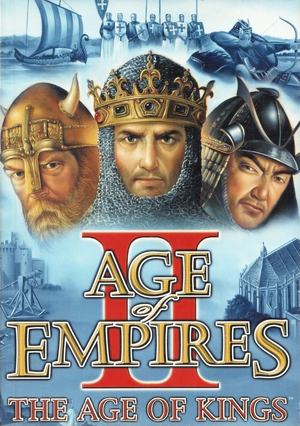 |
|
Ensemble Studios |
| Mac OS (Classic) |
Westlake Interactive |
| macOS (OS X) |
Westlake Interactive |
|
Microsoft |
| Re-releases |
Ubisoft |
| Mac OS, OS X |
MacSoft |
|
Genie |
| Windows |
October 10, 1999 |
| Mac OS (Classic) |
October 2001 |
| macOS (OS X) |
October 2001 |
| Metacritic |
92 |
| Monetization |
One-time game purchase, Expansion pack |
| Microtransactions |
None |
| Modes |
Singleplayer, Multiplayer |
| Pacing |
Real-time |
| Perspectives |
Bird's-eye view, Isometric |
| Controls |
Multiple select, Point and select |
| Genres |
RTS |
| Themes |
Asia, Europe, Middle East, Pre-Columbian Americas, Medieval |
| Series |
Age of Empires |
|
Warnings
- SafeDisc retail DRM does not work on Windows Vista and later (see Availability for affected versions).
- The macOS (OS X) version of this game does not work on macOS Catalina (version 10.15) or later due to the removal of support for 32-bit-only apps.
Age of Empires II: The Age of Kings is a singleplayer and multiplayer bird's-eye view and isometric RTS game in the Age of Empires series.
After its release, the game received The Conquerors expansion in August 2000, with new civilizations, campaigns and quality-of-life improvements like improved villager AI and farm reseed queuing in mills. After release, the game received a sizable community and a modding scene.
Unofficial patches (for both compatibility and bug fixes) and the Voobly community multiplayer service were instrumental in keeping the interest in the game alive, including after the HD Edition of the game which did not have as responsive a netcode as the original. Despite the release of the 2019 Definitive Edition, these modified versions of The Conquerors, including those with back-ported HD and Definitive Edition expansion content, remain relatively popular, mostly among players with lower-spec computers.
General information
- Official Discord server for the series
- Age of Empires II Official Microsoft Site (archived)
- Age of Kings Heaven Community Site and Map Archive
- AoEZone Community site for competitive gaming
- /r/aoe2 Age of Empires 2 Subreddit
- Age of Notes Age of Empires 2 Guides
Availability
- SafeDisc retail DRM does not work on Windows Vista and later (see above for affected versions).
- Free demos are available for The Age of Kings and The Conquerors Expansion.
Version differences
- Age of Empires II: Gold Edition contains the base game and The Conquerors expansion, first released in 2001.
- Age of Empires: Collector's Edition contains Age of Empires and Age of Empires II with their respective expansion packs. The later DVD-ROM releases include the latest patches and are DRM-free, but are missing Red Book CD audio.
Monetization
| Type |
Notes |
| Expansion pack
| The expansion pack includes new civilizations, units, technologies (some civilization-unique) and campaigns. |
| One-time game purchase
| The game requires an upfront purchase to access. |
DLC and expansion packs
| Name |
Notes |
|
| The Conquerors |
Windows version is sold separately, Mac OS version only in Gold Edition. |
|
Essential improvements
Skip intro videos
Patches
- The latest patch for the base game is Version 2.0a.
- The latest patch for The Conquerors is Version 1.0c.
- Alternately, the latest official patches are available at soggi.org.
Unofficial patches (The Conquerors)
- 1.0e includes exploit fixes, a fix for a rare issue with missing permissions when overwriting files, a no-CD patch and a version switcher. The uninstaller cleanly reverts to the official 1.0c version.
- UserPatch: Conquerors Feature Update adds many fixes including widescreen support, UPnP port forwarding, and various optional tweaks. If it is installed on top of v1.0e, no CD is required.
Forgotten Empires
- Forgotten Empires is a mod which adds new civilizations, campaigns, maps and other fixes.
- It was later made available as official DLC for the HD Edition and is included by default with the Definitive Edition - as a result, the mod version is no longer supported.
Game data
Configuration file(s) location
Save game data location
- Player settings are saved in
<path-to-game>\Player.nfp (determines unlocked scenarios etc.)
- Custom campaigns are saved in
<path-to-game>\Campaign\
- Custom scenarios are saved in
<path-to-game>\Scenario\
Video
Input
In-game key map settings.
Audio
| Audio feature |
State |
Notes |
| Separate volume controls |
|
|
| Surround sound |
|
|
| Subtitles |
|
|
| Closed captions |
|
|
| Mute on focus lost |
|
|
| Royalty free audio |
|
|
| Red Book CD audio |
|
On Windows, CD music might not play correctly; see the troubleshooting guide for solutions. |
Localizations
| Language |
UI |
Audio |
Sub |
Notes |
| English |
|
|
|
|
| Traditional Chinese |
|
|
|
|
| French |
|
|
|
|
| German |
|
|
|
|
| Hungarian |
|
|
|
Fan translation by .:i2k:. and kds link #1, link #2 |
| Italian |
|
|
|
|
| Japanese |
|
|
|
|
| Korean |
|
|
|
|
| Spanish |
|
|
|
|
Network
Multiplayer types
Connection types
Ports
| Protocol |
Port(s) and/or port range(s) |
| TCP |
2300-2400, 47624 |
| UDP |
2300-2400 |
- Universal Plug and Play (UPnP) support status is unknown.
Issues unresolved
Dell laptop compatibility issues
On some older Dell laptop models (e.g. the M1530) an issue occurs where the OS crashes and a blue-screen of death is displayed. This issue occurs after a seemingly random amount of gameplay time (from <30 seconds to 10 or 20 minutes). Many things have been tried to fix the issue including changing graphics card drivers, limiting the frame rate to mitigate overheating and running on virtual machines of different operating systems (e.g. Windows 98). As far as can be seen, this issue has never been resolved nor will it be, rendering AoE2 unplayable on the affected models of laptop. This issue can be mitigated by playing through Voobly.com game client and selecting 32-bit DirectX mode in the lobby options. It is actually caused by an unterminated loop in the graphics card driver. However, Age of Empires II HD (the re-mastered version of the game released in 2013) is unaffected by this problem.[citation needed]
Issues fixed
Color issues
- Windows Vista and 7 can have issues with displaying true colours in Age of Empires II correctly.
- This issue does not occur on Windows 8 and later.
- See DirectDraw troubleshooting for further details.
|
UserPatch[citation needed]
|
|
Install UserPatch. This includes a color fix for Vista and 7, and will also set a registry flag, allowing modern Windows systems and newer to emulate the 256-colour mode. It will also optionally provide support for loading the windowed mode plugin, which, apart from its direct purpose, also performs software palette conversion to 32-bit, resolving said issues.
|
|
DirectDrawFix[citation needed]
|
|
Use DirectDrawFix to apply the required compatibility fixes to the registry.
|
LAN connectivity
- This method allows gaming over LAN on modern versions of Windows.
|
Setting the IP address to Static and the Default Gateway to nothing[citation needed]
|
- Go to the Network and Sharing Center.
- Right-click on the LAN adapter and open "Properties".
- Highlight "Internet Protocol Version 4 (TCP/IPv4)" and click on "Properties".
- Check "Use the following IP address:" and enter an address which is not currently being used by the network (such as 192.168.1.[1-253] e.g. 192.168.1.11 ). Also change the Subnet mask to 255.255.255.0 and leave the default gateway blank.
While in use, internet connection will be lost until the settings are switched back to "Obtain an IP address automatically", but LAN will function in-game.
|
MIDI music
|
Copy files from demo version[citation needed]
|
- Download the demo version of Age of Empires II.
- Copy the
midi folder from the sound folder of the demo version.
- Paste the folder in the
sound folder of the full version.
- Run the game with the
-midimusic command line argument.
Notes
- Music from the Conquerors expansion demo can also be used; rename the Conquerors MIDI files from music 1-8 to 9-16 to prevent replacement of existing files.
- The
-midimusic parameter is no longer supported in UserPatch, however its .m3u playlist system allows any audio format to be used for in-game music, including WAV, MP3, WMA, AAC, and FLAC, as long as the required DirectShow codecs are installed.
|
Other information
API
| Technical specs |
Supported |
Notes |
| DirectDraw |
6.1 |
|
| OpenGL |
1.2 |
Mac OS only. |
| Executable | PPC | 16-bit |
32-bit |
64-bit |
Notes |
| Windows | | |
|
|
|
| macOS (OS X) | | | |
|
Intel support was added with the 1.0.6 patch, which converts the game to a universal binary.
Still 32-bit only. |
| Mac OS (Classic) | | | |
|
|
Middleware
|
Middleware |
Notes |
| Multiplayer |
MSN Gaming Zone |
|
| Command[5] |
Description
|
| NoStartup |
Skips the intro
|
| 800 |
Forces the 800x600 resolution
|
| 1024 |
Forces the 1024x768 resolution
|
| 1280 |
Forces the 1280x1024 resolution
|
| Mfill |
Fixes horizontal line issue related to contemporary Matrox video adapters
|
| NormalMouse |
Replaces the ingame cursor with the standard Windows one
|
| NoSound |
Disables game audio with the exception of cinematics
|
| NoTerrainSound |
Disables ambient audio
|
| NoMusic |
Disables music
|
| Msync |
Fixes lockups related to contemporary SoundBlaster AWE configurations
|
System requirements
| Windows | Mac OS (Classic) | macOS (OS X) |
| Windows |
|
Minimum |
Recommended |
| Operating system (OS) |
95 |
98 |
| Processor (CPU) |
166 MHz
| 450 MHz |
| System memory (RAM) |
32 MB |
64 MB |
| Hard disk drive (HDD) |
300 MB | |
| Video card (GPU) |
2 MB of VRAM
DirectX 6.1 compatible
| Nvidia TNT2
ATI Rage 128
16 MB of VRAM |
| Mac OS |
|
Minimum |
| Operating system (OS) |
8.6 |
| Processor (CPU) |
PowerPC G3 300 MHz |
| System memory (RAM) |
128 MB |
| Hard disk drive (HDD) |
750 MB |
| Video card (GPU) |
ATI Rage 128 |
- 500 MHz is required for online play.
| macOS (OS X) |
|
Minimum |
| Operating system (OS) |
10.0.5 |
| Processor (CPU) |
PowerPC G3 300 MHz |
| System memory (RAM) |
128 MB |
| Hard disk drive (HDD) |
750 MB |
| Video card (GPU) |
ATI Rage 128 |
- 500 MHz is required for online play.
- When applying the UB patch, the minimum supported OS is 10.3.9.
Notes
- ↑ SafeDisc retail DRM does not work on Windows 10[1] or Windows 11 and is disabled by default on Windows Vista, Windows 7, Windows 8, and Windows 8.1 when the KB3086255 update is installed.[2]
- ↑ 2.0 2.1 When running this game without elevated privileges (Run as administrator option), write operations against a location below
%PROGRAMFILES%, %PROGRAMDATA%, or %WINDIR% might be redirected to %LOCALAPPDATA%\VirtualStore on Windows Vista and later (more details).
References