
Dishonored
 |
|
| Developers | |
|---|---|
| Arkane Studios | |
| Publishers | |
| Bethesda Softworks | |
| Engines | |
| Unreal Engine 3 | |
| Release dates | |
| Windows | October 9, 2012 |
| Reception | |
| Metacritic | 91 |
| IGDB | 90 |
| Taxonomy | |
| Monetization | One-time game purchase, DLC, Subscription gaming service |
| Modes | Singleplayer |
| Pacing | Real-time |
| Perspectives | First-person |
| Controls | Direct control |
| Genres | Immersive sim, Action, Stealth |
| Art styles | Stylized |
| Themes | Fantasy, Steampunk |
| Series | Dishonored |
 |
|
| Dishonored | |
|---|---|
| Dishonored | 2012 |
| Dishonored 2 | 2016 |
| Dishonored: Death of the Outsider | 2017 |
Dishonored is a singleplayer first-person immersive sim, action and stealth game in the Dishonored series.
Key points
- DLC is not directly accessible from the main menu.
- Editing .ini files prevents Dunwall City Trials scores to be posted to the leaderboards.[1]
- Generally regarded as a high-quality PC port.[2][3]
General information
Availability
| Source | DRM | Notes | Keys | OS |
|---|---|---|---|---|
| Retail | |
|
||
| Epic Games Store | |
Definitive Edition.[4] | |
|
| GamersGate | |
Definitive Edition also available. | |
|
 |
|
Definitive Edition also available. | |
|
| GOG.com | |
Definitive Edition. | |
|
| Green Man Gaming | |
Definitive Edition also available. | |
|
| Humble Store | |
Definitive Edition also available. | |
|
| Microsoft Store | |
Definitive Edition. Included with Xbox Game Pass for PC. | |
|
| Steam | |
Definitive Edition also available. | |
|
| Steam | |
RHCP (Russia, Hungary, Czech, Polish) version | |
|
| Amazon.com (unavailable) | |
Definitive Edition also available. | |
|
| Amazon.co.uk (unavailable) | |
Game of the Year Edition also available. | |
|
| Bethesda.net (unavailable) | |
Definitive Edition also available. | |
Version differences
- The Definitive Edition (formerly Game of the Year Edition) includes the base game and all DLC.
Monetization
| Type | Notes |
|---|---|
| DLC | Additional content. |
| One-time game purchase | The game requires an upfront purchase to access. |
| Subscription gaming service | Available via Xbox Game Pass for PC. |
DLC and expansion packs
| Name | Notes | |
|---|---|---|
| Dunwall City Trials | |
|
| The Brigmore Witches | |
|
| The Knife of Dunwall | |
|
| Void Walker Arsenal | |
Essential improvements
Skip intro videos
Use the -nostartupmovies command line argument[5]
|
|---|
| INI Method |
|---|
|
Game data

Configuration file(s) location
| System | Location |
|---|---|
| Windows | %USERPROFILE%\Documents\My Games\Dishonored\DishonoredGame\Config\ HKEY_CURRENT_USER\Software\Arkane\Dishonored\ |
| Microsoft Store | %USERPROFILE%\Documents\My Games\Dishonored\DishonoredGame\Config\ HKEY_CURRENT_USER\Software\Arkane\Dishonored\ |
| Steam | <Steam-folder>\userdata\<user-id>\205100\remote\options.sav |
| Steam Play (Linux) | <SteamLibrary-folder>/steamapps/compatdata/205100/pfx/[Note 1] |
- Editing any of the .ini files prevents Dunwall City Trials scores to be posted to the leaderboards.[1]
Save game data location
| System | Location |
|---|---|
| Windows | %USERPROFILE%\Documents\My Games\Dishonored\DishonoredGame\SaveData |
| Microsoft Store | %USERPROFILE%\Documents\My Games\Dishonored\DishonoredGame\SaveData |
| Epic Games Launcher | %USERPROFILE%\Documents\My Games\Dishonored\DishonoredGame\SaveData |
| Steam | <Steam-folder>\userdata\<user-id>\205100\remote\ <Steam-folder>\userdata\<user-id>\217980\ |
| Steam Play (Linux) | <SteamLibrary-folder>/steamapps/compatdata/205100/pfx/[Note 1] |
- The normal version uses
205100; the RHCP (Russian, Hungarian, Czech, Polish) version uses217980 - Maximum of 40 manual save slots + 9 automatic mission saves + 2 autosave slots + 1 quicksave slot.
- DLCs have a separate save slot limit.
Save game cloud syncing
| System | Native | Notes |
|---|---|---|
| Epic Games Launcher | ||
| GOG Galaxy | ||
| OneDrive | Requires enabling backup of the Documents folder in OneDrive on all computers. | |
| Steam Cloud | Syncs save games and settings. | |
| Xbox Cloud |
Convert Steam save games to Epic Games Store version
| Instructions |
|---|
|
Convert Epic Games Store save games to Steam version
| Instructions |
|---|
|
General conversion between any 2 versions of save games
| Instructions |
|---|
(Alternative method) This process (which can be cumbersome, in the case of many save files) can be automated using a PowerShell Script. On Windows, open a Powershell terminal and paste the following code after adequately replacing # Specify the path to the folder containing the .sav files
$folderPath = "C:\Path\To\Your\Folder"
# Specify the path to the reference valid save file
$referenceFilePath = "C:\Path\To\Your\ReferenceSave.sav"
# Read the content of the reference file as a byte array
$referenceFileContent = [System.IO.File]::ReadAllBytes($referenceFilePath)
# Extract the first 5 hexadecimal values from the reference file
$referenceHexValues = $referenceFileContent[0..4]
# Get a list of .sav files in the folder
$savFiles = Get-ChildItem -Path $folderPath -Filter *.sav
# Loop through each .sav file
foreach ($file in $savFiles) {
# Read the content of the file as a byte array
$fileContent = [System.IO.File]::ReadAllBytes($file.FullName)
# Replace the first 5 hexadecimal values with the values from the reference file
for ($i = 0; $i -lt 5; $i++) {
$fileContent[$i] = $referenceHexValues[$i]
}
# Write the modified content back to the file
[System.IO.File]::WriteAllBytes($file.FullName, $fileContent)
Write-Host "Modified $($file.Name)"
}
Write-Host "Replacement complete."
You can also directly feed the script with the hexadecimal values (e.g. |
(Optional step, after conversion) Copy over the original timestamps of the game saves
| Instructions |
|---|
To fix that, on Windows, you can either:
# Specify the paths to the original and destination folders
$originalFolder = "C:\Path\To\Folder1_original"
$destinationFolder = "C:\Path\To\Folder2_modified"

# Get the list of files in both folders
$originalFiles = Get-ChildItem -Path $originalFolder
$destinationFiles = Get-ChildItem -Path $destinationFolder

# Loop through each file in the original folder
foreach ($originalFile in $originalFiles) {
    # Find the corresponding file in the destination folder
    $destinationFile = $destinationFiles | Where-Object { $_.Name -eq $originalFile.Name }

    # If a corresponding file is found, copy the timestamp
    if ($destinationFile -ne $null) {
        $destinationFile.LastWriteTime = $originalFile.LastWriteTime
        $destinationFile.CreationTime = $originalFile.CreationTime
        $destinationFile.LastAccessTime = $originalFile.LastAccessTime
    }
}

# Output a message indicating that the timestamps have been copied
Write-Host "Timestamps copied from $originalFolder to $destinationFolder."
|
Video


| Graphics feature | State | WSGF | Notes |
|---|---|---|---|
| Widescreen resolution | |||
| Multi-monitor | Use Flawless Widescreen for the best experience. | ||
| Ultra-widescreen | [6] | ||
| 4K Ultra HD | |||
| Field of view (FOV) | 65-110°;[7] for custom values, see Field of view (FOV). | ||
| Windowed | Toggled with F11, menu option, or the -windowed parameter.[8] |
||
| Borderless fullscreen windowed | Works with GeDoSaTo. | ||
| Anisotropic filtering (AF) | Default is 4x. See Anisotropic filtering (AF). | ||
| Anti-aliasing (AA) | FXAA, MLAA. | ||
| High-fidelity upscaling | See the glossary page for potential workarounds. | ||
| Vertical sync (Vsync) | Triple buffered. | ||
| 60 FPS and 120+ FPS | Uses frame rate smoothing with maximum value of 130. For higher frame rates see High frame rate. | ||
| High dynamic range display (HDR) | See the glossary page for potential alternatives. | ||
Field of view (FOV)
| Use Dishonored FOV Hack[9] |
|---|
|
| Add FOV hotkey[citation needed] |
|---|
Notes
|
Anisotropic filtering (AF)
| Changing Anisotropic Filtering level[citation needed] |
|---|
|
Anti-aliasing (AA)
| Force SGSSAA (Nvidia only)[10][11] |
|---|
|
Ambient occlusion
| Force HBAO+ (Nvidia only)[12][13] |
|---|
|
High frame rate
| Change frame rate smoothing[citation needed] |
|---|
|
Input
| Keyboard and mouse | State | Notes |
|---|---|---|
| Remapping | ||
| Mouse acceleration | Mouse smoothing option is on by default. Slider in menu for smoothing/acceleration. | |
| Mouse sensitivity | Mouse has deadzone when zoomed in. | |
| Mouse input in menus | ||
| Mouse Y-axis inversion | ||
| Controller | ||
| Controller support | ||
| Full controller support | Supports both auto-aim and aim assist. | |
| Controller remapping | Only pre-set layouts are available. | |
| Controller sensitivity | ||
| Controller Y-axis inversion |
| Controller types |
|---|
| XInput-compatible controllers | ||
|---|---|---|
| Xbox button prompts | ||
| Impulse Trigger vibration | Use X1nput[14] |
| PlayStation controllers |
|---|
| Generic/other controllers |
|---|
| Additional information | ||
|---|---|---|
| Button prompts | ||
| Controller hotplugging | May not work properly, can happen along with settings not saving when using a controller. This can be fixed using these instructions. | |
| Haptic feedback | ||
| Digital movement supported | ||
| Simultaneous controller+KB/M | Occasionally changes button prompts |
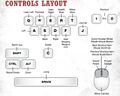
Dishonored's keyboard shortcuts.
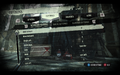
In-game key map settings.
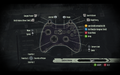
In-game gamepad layout settings.
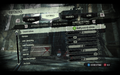
In-game gamepad settings.


Audio

| Audio feature | State | Notes |
|---|---|---|
| Separate volume controls | ||
| Surround sound | 5.1 but center channel is flaky[15] | |
| Subtitles | ||
| Closed captions | ||
| Mute on focus lost | ||
| Royalty free audio |
Localizations
| Language | UI | Audio | Sub | Notes |
|---|---|---|---|---|
| English | ||||
| Czech | Region locked to copies bought in Poland, Russia, Hungary and Czech (with exception of GOG and MS Store releases). | |||
| French | Unofficial patch for global version can be found here. | |||
| German | ||||
| Hungarian | Region locked to copies bought in Poland, Russia, Hungary and Czech (with exception of GOG and MS Store releases). | |||
| Italian | ||||
| Japanese | Fan translation made by UnnamedPlayer and fackman can be found here. [16] | |||
| Polish | Region locked to copies bought in Poland, Russia, Hungary and Czech (with exception of GOG and MS Store releases). For global version, use this. | |||
| Brazilian Portuguese | Fan translation made by Tribo Gamer can be found here, here and here. | |||
| Russian | Region locked to copies bought in Poland, Russia, Hungary and Czech (with exception of GOG and MS Store releases). For global version, use this. | |||
| Spanish | ||||
| Turkish | Fan translation by Dark Glyphs, here. |
Independent UI and dubbing/captioning
| Instructions[17] |
|---|
Notes
|
VR support
| 3D modes | State | Notes | |
|---|---|---|---|
| Native 3D | |||
| Nvidia 3D Vision | |||
| TriDef 3D | |||
| iZ3D | |||
| vorpX | G3D, DirectVR Officially supported game, see official vorpx game list. |
||
| Devices | |||
|---|---|---|---|
| 3RD Space Gaming Vest | |||
Issues unresolved
The Knife of Dunwall: Low resolution textures on butchers
The game is using the low detail textures on butchers instead of the high detail textures.[18]
The Knife of Dunwall: Missing 2D image files
Generic placeholder images are replacing some 2D icons and images in-game.[19]
Issues fixed
"Fatal Error!" crash
| Start the game from within the Steam client |
|---|
"First time setup" runs every time game is started
| Flag installations[20][21] |
|---|
|
Controller hotplugging does not work
Run the game as an administrator, as detailed here.
Game options cannot be saved or loaded when using a controller
The game forces you to pick either keyboard/mouse or controller when you first open the main menu. Everything works fine with keyboard and mouse; however, with a controller, while the settings can be changed, they will never be saved and the game will reload the default settings every time a save file is loaded.
"High Overseer Campbell" meeting chamber bug

- Opening the gate behind Overseer Martin during the "High Overseer Campbell" mission will trigger a bug with the main objective: High Overseer Campbell and Captain Curnow cut off their conversation too early, and everyone in the waiting area becomes alerted and rushes into the meeting chamber. The mission can still be completed, but several ways of solving the main objective are automatically failed.[22][23]
| Avoid opening the bugged gate[22][23] |
|---|
|
Complete the meeting chamber portion of the mission without opening the gate behind Overseer Martin (use climbing, Blink, or other methods to get inside without opening this particular gate). |
"Creating a Safe Haven" side objective doesn't complete
- After escorting the survivors past the Threat Zone, the game may still not give credit for the objective's completion. In order to successfully complete the quest, the player may need to perform the following action.
| Place weeper corpse in the safe zone[24][25] |
|---|
|
Return to the apartments and pick up a weeper corpse. Place this corpse in the safe zone with the other survivors. |
- After the objective is completed, do not turn on the nearby floodlights. Even though the survivors are no longer in the apartments, the objective will fail automatically when the tallboys begin to attack the apartments.[26]
Other information
API
| Technical specs | Supported | Notes |
|---|---|---|
| Direct3D | 9.0c | |
| Shader Model support | 3 |
| Executable | 32-bit | 64-bit | Notes |
|---|---|---|---|
| Windows | 64-bit applies to the Microsoft Store and Epic Games Store versions. |
Middleware
| Middleware | Notes | |
|---|---|---|
| Physics | PhysX, APEX | 2.8.4.6 1.0.0.0 |
| Audio | Wwise | |
| Interface | Scaleform | |
| Cutscenes | Bink Video | 1.9p |
D1Fix
D1Fix is a fan-developed update patch for Dishonored Definitive Edition.
System requirements
| Windows | ||
|---|---|---|
| Minimum | Recommended | |
| Operating system (OS) | Vista, 7 | |
| Processor (CPU) | 3.0 GHz Dual Core | 2.4 GHz Quad Core |
| System memory (RAM) | 3 GB | 4 GB |
| Hard disk drive (HDD) | 9 GB | |
| Video card (GPU) | Nvidia GeForce GTX 460 ATI Radeon HD 5850 512 MB of VRAM DirectX 9.0c compatible | 768 MB of VRAM |
| Sound (audio device) | Windows compatible | |
- Although official system requirements show Windows Vista as a minimum, the game does run on Windows XP.[27]
Notes
- ↑ 1.0 1.1 Notes regarding Steam Play (Linux) data:
- File/folder structure within this directory reflects the path(s) listed for Windows and/or Steam game data.
- Games with Steam Cloud support may also store data in
~/.steam/steam/userdata/<user-id>/205100/. - Use Wine's registry editor to access any Windows registry paths.
- The app ID (205100) may differ in some cases.
- Treat backslashes as forward slashes.
- See the glossary page for details on Windows data paths.
References
- ↑ 1.0 1.1 Dishonored Graphics (TWEAKS) - Page 32 - Steam Users' Forums (retrieved)
- ↑ WTF Is... - Dishonored ? - YouTube - last accessed on May 2023
- ↑ A look at Dishonored’s many UI options | Bethesda Blog
- ↑ Verified by User:Dribbleondo on 2022-12-29
- No issues running it via the executable, no need for a command. Successfully managed to load and play 10 minutes of Dunwall with no issues; DLC is also available and likely works too
- ↑ Dishonored | Skip Game Intros Wiki | Fandom powered by Wikia
- ↑ Steam Community :: Group :: /r/ultrawidemasterrace Group - last accessed on May 2023
- ↑ Field of View: 65 vs 110 | Dishonored - YouTube
- ↑ Dishonored stops responding and shows a very long error, and crashes to desktop. - PC - Bethesda Softworks Forums - last accessed on May 2023
- ↑ ToCA EDIT: Dishonored FOV Hack Released - last accessed on May 2023
- ↑ NVidia Profile Inspector - AA Flags - Google Drive - last accessed on May 2023
- ↑ Antialiasing - Kompatibilitätsbits - Sammelthread - 3DCenter Forum
- ↑ HBAO+ Compatibility Flags - last accessed on May 2023
- ↑ Original HBAO+ Post at Guru3D.com Forums - last accessed on May 2023
- ↑ Custom Xinput DLL with Impulse Trigger support on Xbox One Controllers - last accessed on May 2023
- ↑ PC Gaming Surround Sound Round-up - last accessed on May 2023
- ↑ 【PC】 Dishonored ディスオナード part7
- ↑ HowTo: Play Dishonored with separate Voice/Text language :: Steam community discussions and extended by Mirh
- ↑ Blurry texture not loading in? - Steam community discussions - last accessed on May 2023
- ↑ Missing image files in new DLC - Steam community discussions - last accessed on May 2023
- ↑ First time setup every launch. - Steam Users' Forums (retrieved)
- ↑ Whenever I open Dishonored, a message box ALWAYS pops up asking if I am ok with Steam making changes to my computer... Is there a way around this? [Steam] : dishonored - Reddit
- ↑ 22.0 22.1 Overseer Campbell quest bug? :: Dishonored General Discussions
- ↑ 23.0 23.1 Dishonored Overseer Campbell Quest Gate Bug - YouTube
- ↑ Glitched out secondary mission "Creating a Safe Haven" :: Steam Community Discussions
- ↑ How to complete 'Creating a Safe Haven' (if bugged) - Youtube
- ↑ Glitched out secondary mission "Creating a Safe Haven" - page 2 :: Steam Community Discussions
- ↑ Dishonored on XP & XP x64 - Steam Users' Forums (retrieved)